Settings
In Settings you define your restaurant's basic information, reservation timings and capacity, and the appearance of the customer-facing booking page.
Basic information
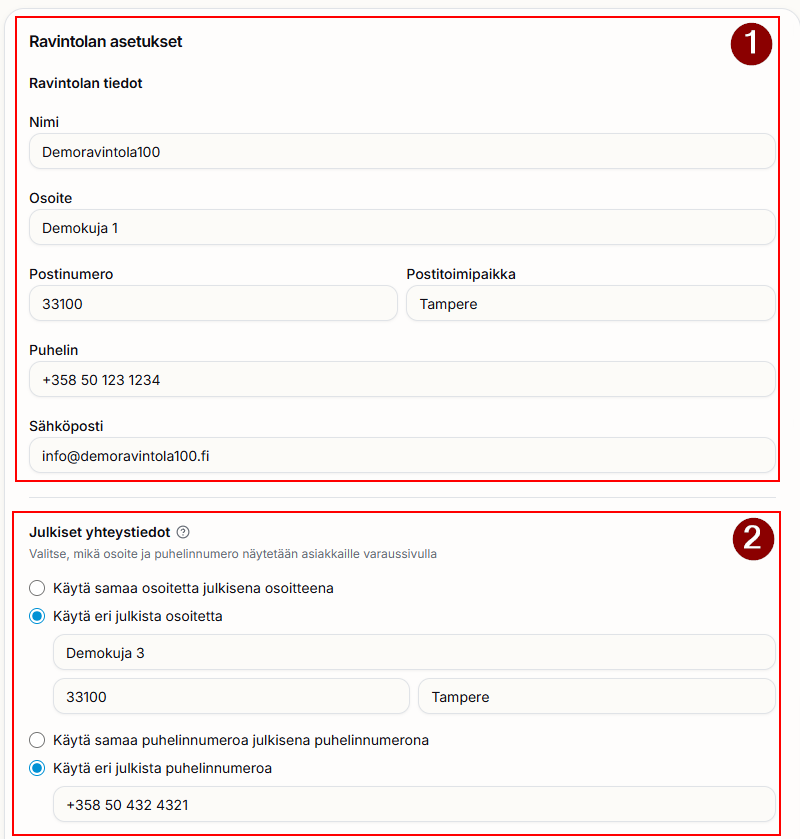
- Restaurant basic information — name, address, phone number and email.
- A correct phone number and email are essential, as they are used for communication with the TimeNTable service provider.
- Public contact details — set these if they differ from the general settings. You can choose the address and phone number shown to customers separately.
Timings
Adjust the times that suit your restaurant. Below you can also see the effects of each choice.
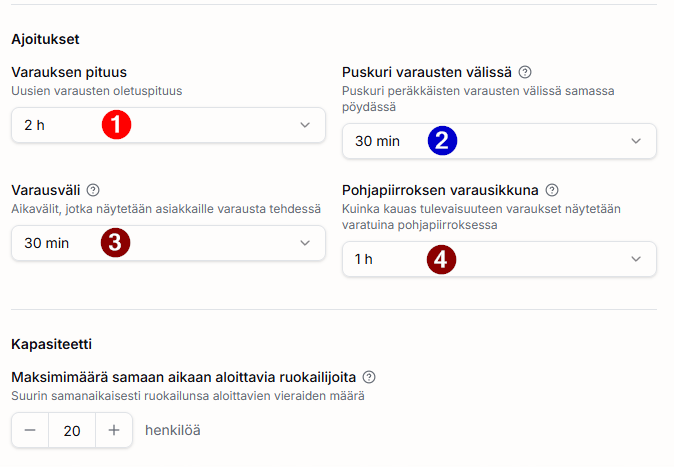
- Reservation length — the default length of new reservations.
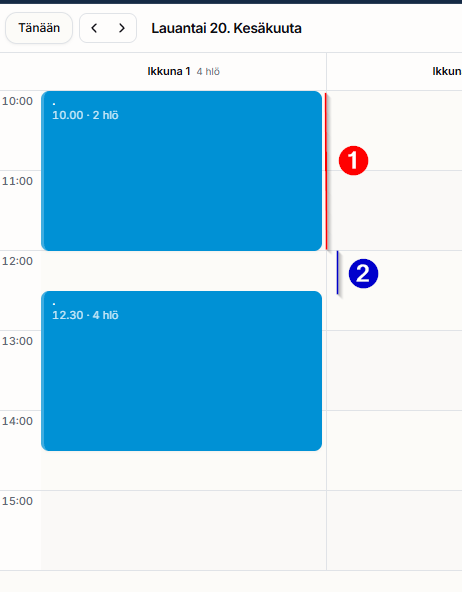
- Buffer between reservations — buffer between consecutive reservations at the same table.
- Reservation interval — the time slots shown to the customer when booking.
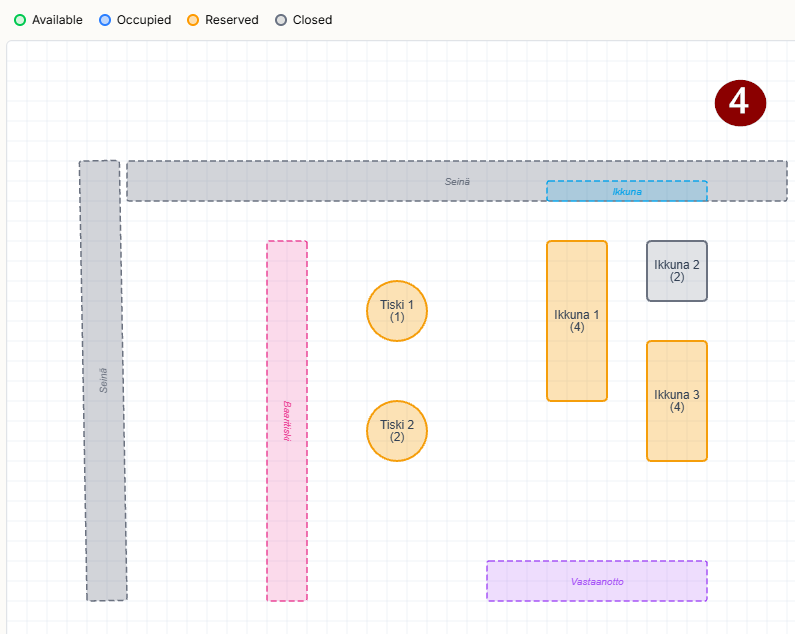
- Floor plan booking window — how far into the future reservations are shown as booked on the floor plan.
Capacity — set the maximum number of guests that can start their meal at the same time.
Effects of the choices
The buffer appears in the calendar as booked time after a reservation:
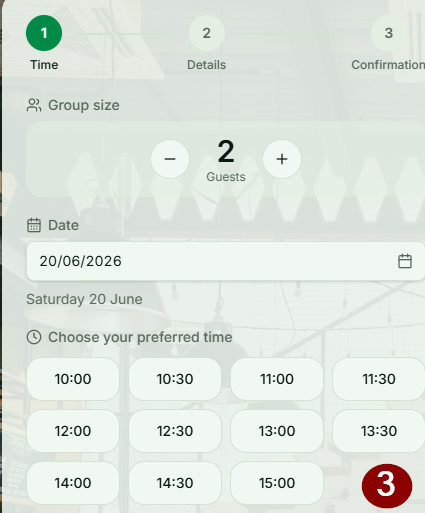
The reservation interval determines which times are offered to the customer on the booking page:
The floor plan booking window determines how far into the future reservations appear as booked on the table map:
Logo, background image and theme
In this section you can add your restaurant's logo and a background image to the customer booking page, if you like. You can also change the overall look by switching the theme.
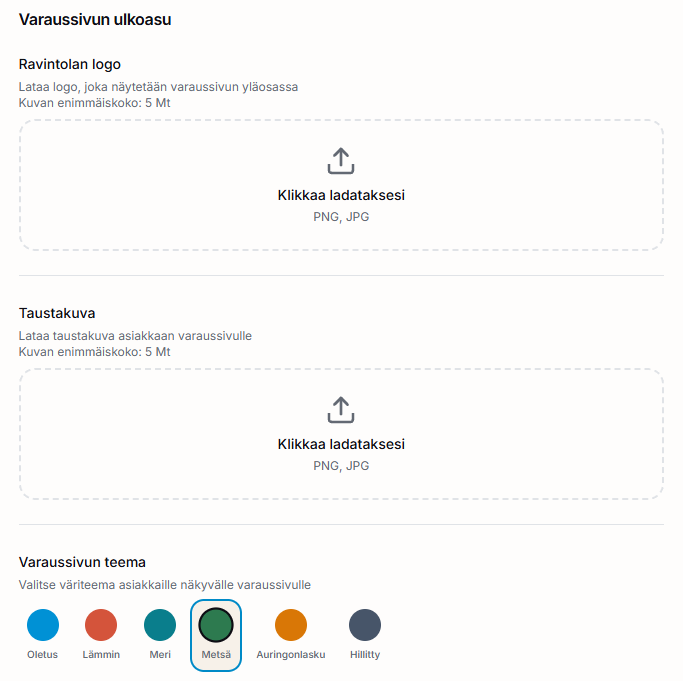
- Restaurant logo — shown at the top of the booking page. Maximum image size 5 MB (PNG or JPG).
- Background image — the background of the customer booking page. Maximum image size 5 MB.
- Booking page theme — choose a color theme for the customer-facing booking page.
Info box
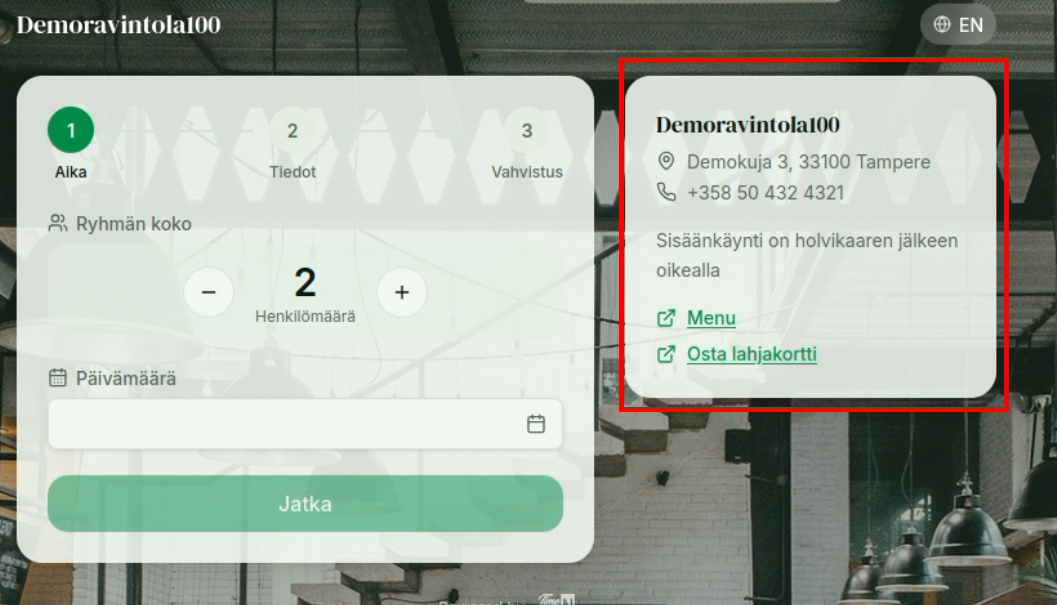
The info box settings affect the info box shown in the customer booking flow. The info box is shown to the customer on the booking page, with the restaurant name as the heading.
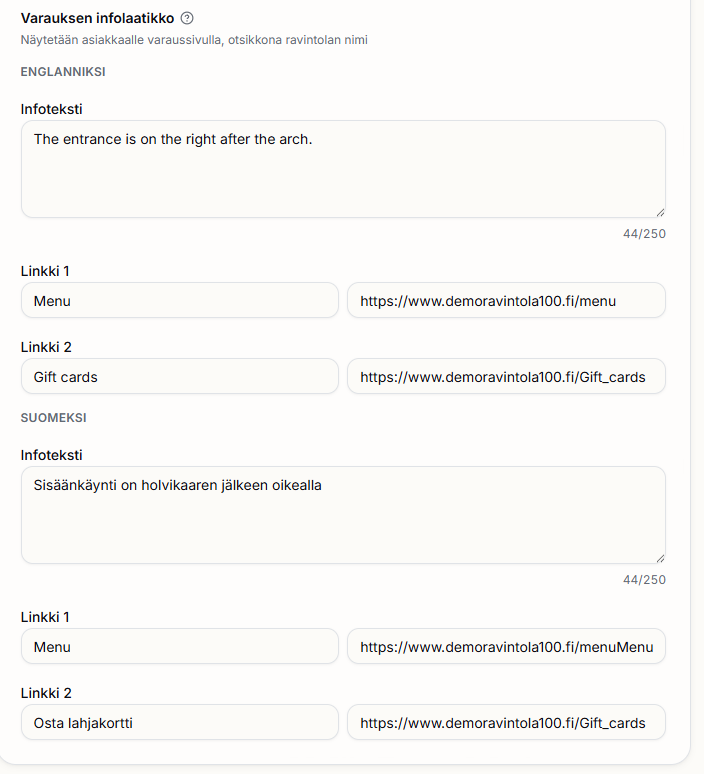
You can enter info text and up to two links in both English and Finnish, so the info box text is shown to the customer in their chosen language.
This is how the info box appears to the customer on the booking page: