Reservations
In the Reservations view you manage all of your restaurant's reservations and can add new reservations manually.
Reservations overview
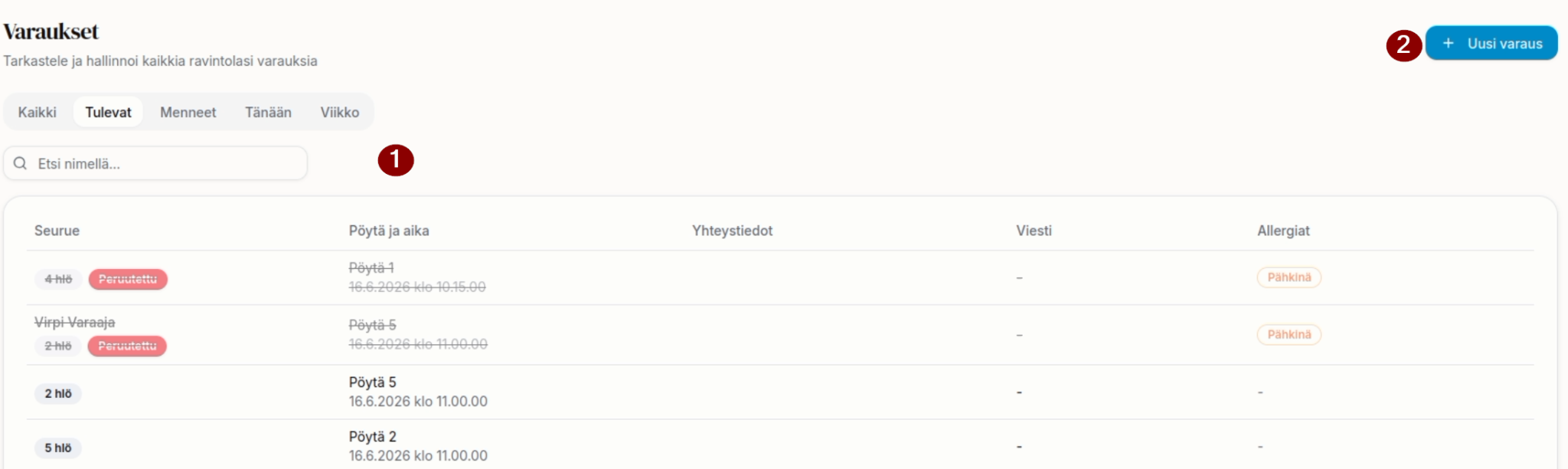
- Through the Reservations view you see an overall picture of your restaurant's reservations. You can filter reservations (All, Upcoming, Past, Today, Week) and search for a reservation by name.
- You can also add a new reservation manually.
Editing an individual reservation is done by clicking the reservation.
New reservation
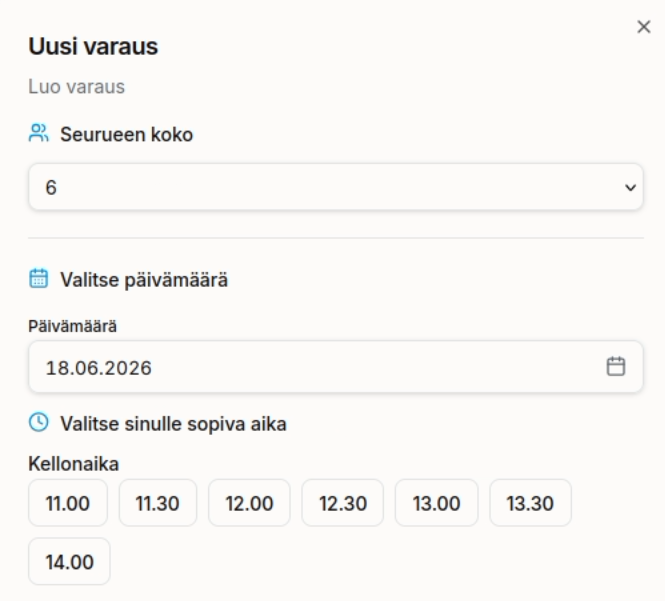
Select the group size and date, and the system automatically suggests suitable times.
After selecting a time, you can enter the guest's basic details:
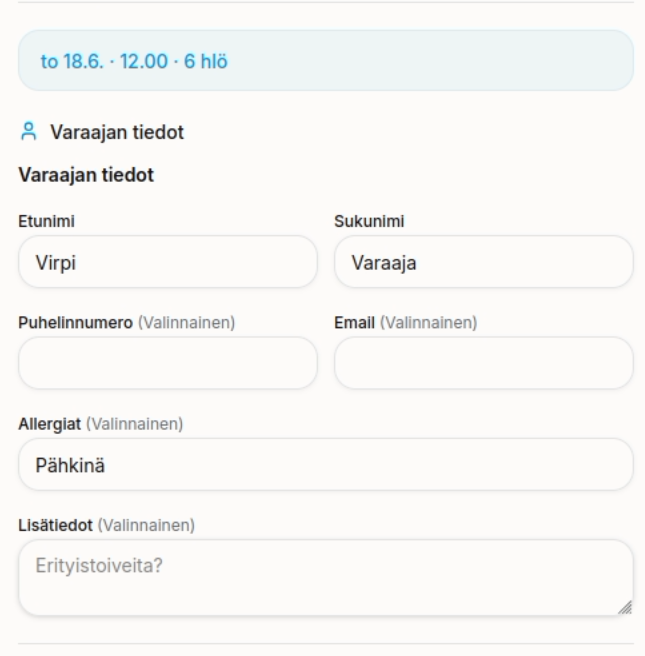
First and last name are required; phone number, email, allergies and additional information are optional.
Single reservation
Click an individual reservation to edit its details.
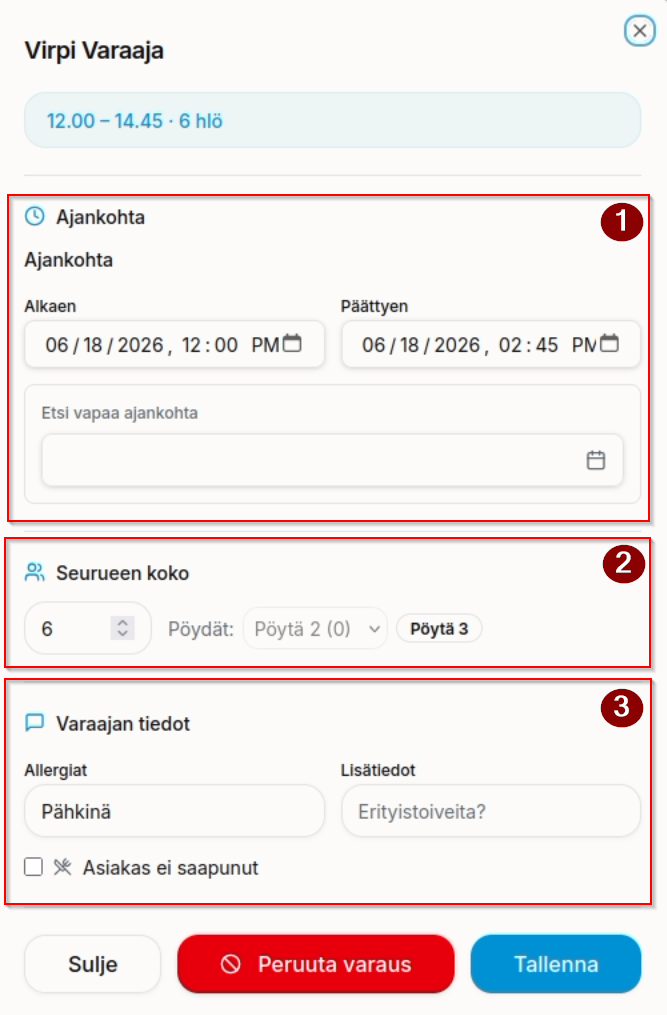
- Reservation time and making changes.
- Group size and the selected table(s).
- In this case, merged tables are reserved for the group (Table 2 and Table 3).
- Allergies and additional information.
- You can also mark here if the customer did not show up.
Save changes with the Save button, or cancel the reservation with the Cancel reservation button.